Raptor Ace Overview
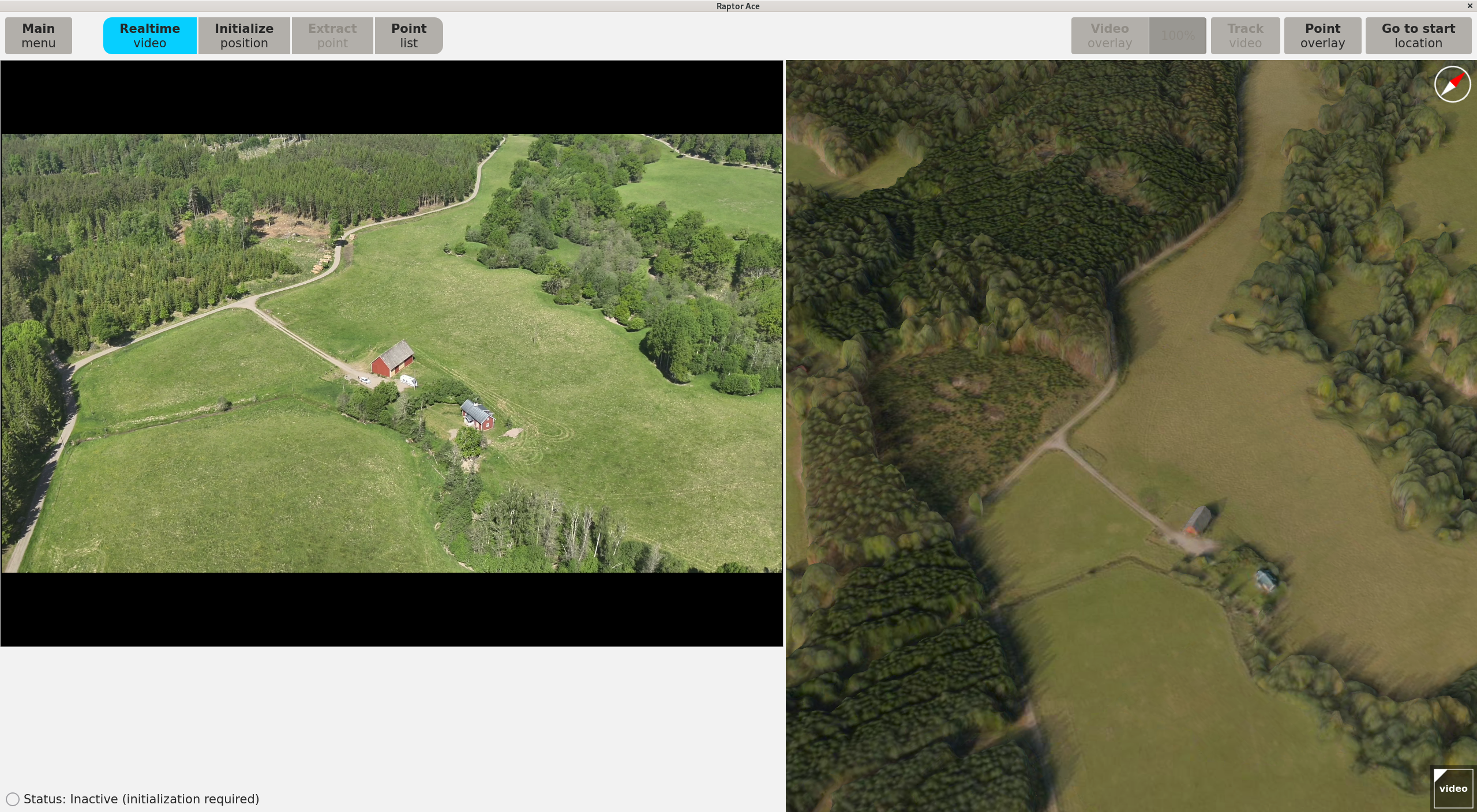
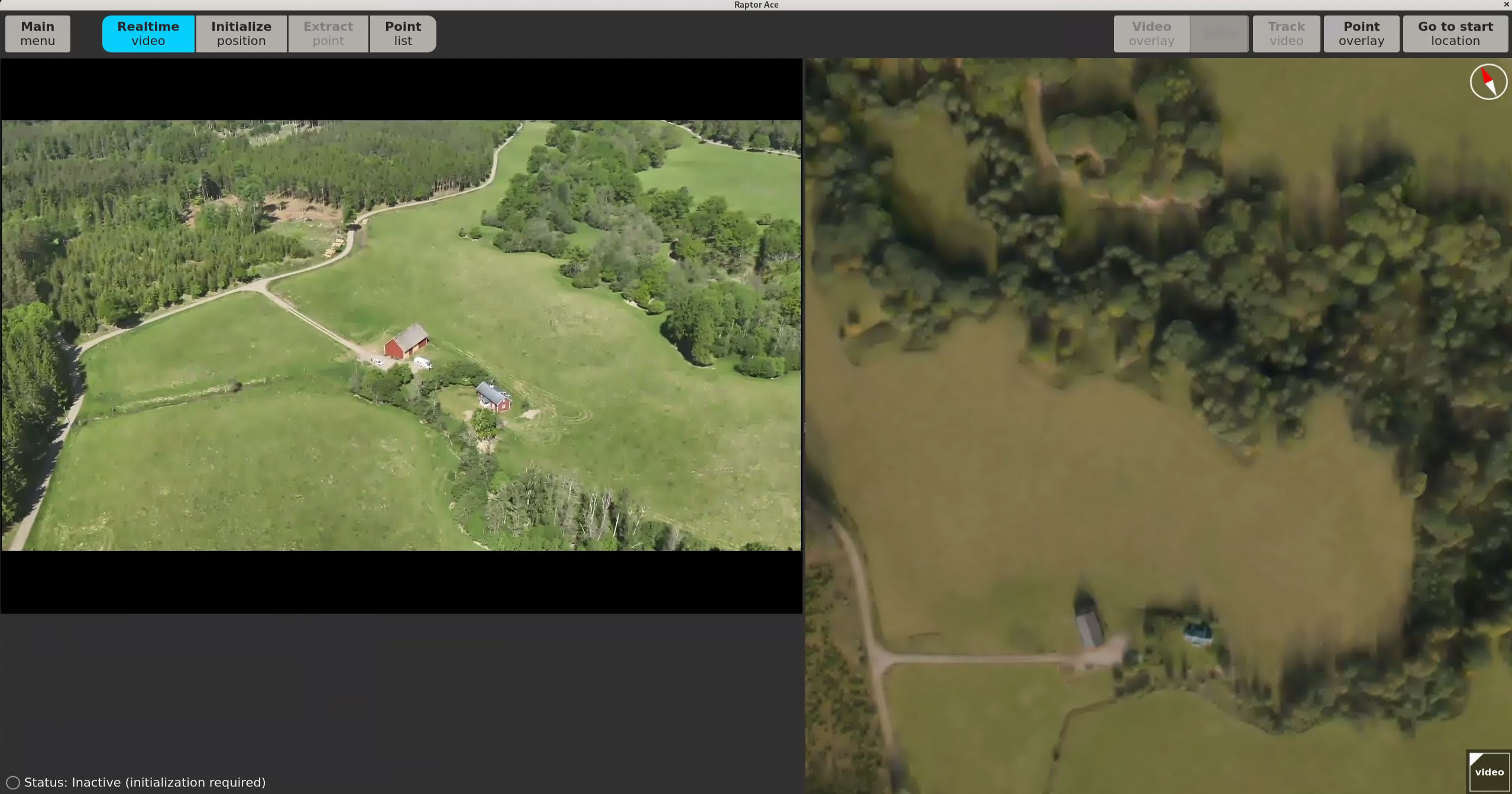
Vantor Raptor Ace (the client) is a software product to enable real-time situational awareness and ground coordination extraction of points of interest using aerial drone video. Operating alongside existing drone controllers, Raptor Ace enables operators in a GPS/GNSS-denied environment, to locate ground features and objects of interest to extract ground coordinates. To achieve the best performance of Raptor Ace, operate according to the recommended operational envelope found in the Raptor Ace Product Specification.
Raptor Ace consists of the Raptor Ace software application and an optional Software Development Kit (SDK) for third-party integrators. Raptor Ace requires integration with a supported drone to operate. For more information about the SDK and drone integration, see the Raptor Ace Product Specification.
The Raptor Ace software interface is divided into the following views:
Hardware and Software Requirements
Recommended hardware requirements
The following configuration is the recommended hardware baseline for Raptor Ace.
| Computer: | Commodity laptop or desktop |
| Processor: | 10-core CPU |
| Memory: | 16 GB RAM |
| Storage: | Minimum 500 GB for a mission area of 30,000 sq km. Additional storage is required for larger mission areas. |
| Graphics card: | NVIDIA RTX 500 GFx or newer. |
Additional GPU requirements
Raptor Ace requires a Vulkan 1.3-compatible GPU and drivers that support the following device features (met by the recommended GPU):
VkPhysicalDeviceVulkan12Features::bufferDeviceAddressVkPhysicalDeviceVulkan12Features::timelineSemaphoreVkPhysicalDeviceVulkan13Features::dynamicRenderingVkPhysicalDeviceVulkan13Features::synchronization2VkPhysicalDeviceVulkan13Features::maintenance4
At least 4 GB of available RAM/GPU memory is required; 8 GB is recommended.
Platform support
Linux Rocky9
Linux Rocky9 must be installed as a system-level operating system. Raptor Ace is not supported when run within a Linux Rocky9 virtual environment, for example VMware on Windows.
Install the following packages before running Raptor Ace:
| Package | Installation |
| tpm2-tss | dnf -y install tpm2-tss (from baseos) |
| tpm2-abrmd | dnf -y install tpm2-abrmd (from appstream) |
| mesa-libGLU | dnf -y install mesa-libGLU (from appstream) |
| fmt | dnf -y install fmt (from epel) |
| turbojpeg | dnf -y install turbojpeg (from crb) |
| libzip | dnf -y install libzip (from appstream) |
| draco | dnf -y install draco (from epel) |
| opencv-core | dnf -y install opencv-core (from epel) |
| xcb-util-cursor | dnf -y install xcb-util-cursor (from appstream) |
| libpq | dnf -y install libpq (from appstream) |
Windows 11
Raptor Ace is available as a Windows build. The Linux package requirements above do not apply to Windows; Windows provides the TPM interface used for licensing through its system services.
Raptor Ace is distributed as a .exe installer for Windows. Run the provided installer and follow the instructions to open Raptor Ace. Plugins are not included and must be installed separately by the customer.
Raptor Ace workflow and concepts
Configuration
The initial step in operating Raptor Ace requires the configuration of essential system components. Raptor Ace requires a valid license, a drone integration, and 3D reference data to function. Contact your designated point of contact for Raptor Ace to obtain the necessary configuration parameters and credentials.
Configuration is performed through the main system interface, in the main menu. The software license is loaded and validated, the drone is selected and connected to establish real-time video feed, and the 3D reference data corresponding to the intended operational area is imported and verified. See Getting started for a guide on how to configure the system.
Initialization
After configuration is complete, Raptor Ace needs an initial pose (position and attitude) of the drone’s sensor. This is performed to ensure the drone video accurately corresponds to the 3D reference data. The initialization is performed after takeoff and while following the recommended operational envelope found in the Raptor Ace Product Specification. For a guide on how to perform the initialization, see Initialize position.
A reinitialization can be performed if the first initialization does not meet the standards.
Navigation
The phase of flight between Initialization and Point Extraction is referred to as the Navigation phase. The Navigation phase typically means flying the drone and panning the sensor along the planned route.
During Navigation, for optimal performance and connectivity between the GCS and the drone controller, it is recommended to use an Ethernet cable.
For situational awareness and navigation purposes, Raptor Ace displays the registered video as an overlay on the 3D reference data in the UI, see 3D data panel for a guide on how to apply it.
Raptor Ace supports zoom during Navigation to allow closer inspection of the video content when needed. Effective zoom levels depend on the amount of detail and contrast in the scene. Optimal results are achieved with moderate zoom to identify key features. Excessive zoom on low-detail or low-contrast scenes may degrade the ability to align the video with the 3D reference data, due to insufficient visual information. Zoom should be performed while the drone is hovering, and the sensor is not panning.
For more specifications on how to operate the drone and sensor during Navigation, see the recommended operational envelope found in the Raptor Ace Product Specification.
Point Extraction
Once initialization is successful, and desired positions for extraction have been located, the coordinates of a point can be extracted. Follow the recommended operational envelope found in the Raptor Ace Product Specification when operating the drone during Point Extraction. For a guide on how to operate the Raptor Ace application during point extraction, see Extract Point.
From extraction, points are added to the Point list. In the list, the points can be renamed, edited, deleted, and exported, and new points can be created from the 3D data panel if needed.